Mozilla Firefox
 | |
 Firefox running on a GNU/Linux machine | |
| Developer(s) | Mozilla Corporation |
|---|---|
| Initial release | September 23, 2002 |
| Stable release | 80
/ August 23, 2020 |
| Repository | https://hg.mozilla.org/ mozilla-central/ |
| Written in | C, C++, JavaScript, Rust |
| Engine | Quantum |
| Operating system | Multi-platform (Linux, Windows, macOS, *BSD, iOS, Android) |
| Standard(s) | HTML5, CSS3, WebP, VP9, AV1 |
| Available in | 90 languages |
| Type | Web browser |
| License | MPL 2.0 |
| Website | mozilla.org/firefox/ |

Mozilla Firefox is a web browser developed by the Mozilla Corporation with it's own unique Quantum web content rendering engine. Mozilla markets Firefox as a privacy-focused web browser and it can be to a large degree if you manually disable all the telemetry spyware Mozilla has baked into Firefox. The rendering engine is fully capable of rendering the vast majority of websites on the Internet. Firefox performs alright, but not great, and it is specially bad at everything using JavaScript or WebAssembly to render WebGL graphics. Firefox is overall a decent, but not great, web browser.
A brief history-lesson[edit]
The Netscape Communications Corporation launched the Netscape web browser in 1994. This browser grew to become the rather bloated Netscape Communicator web browser suite which was a web browser with a built-in e-mail client, Usenet news client, HTML editor, calendar and even a conference client. The Netscape Corporation released Netscape the source code and created the Mozilla Foundation in February 1998. Mozilla rebranded their flavor of the Netscape Communicator as the Mozilla Application Suite.
Mozilla felt that the Mozilla Application Suite had become a huge pile of bloat, which it was. They therefore launched two dedicated and focused products: The Phoenix Web Browser and the Thunderbird e-mail client. The Phoenix Web Browser was meant to be a slim, light and fast web browser, not a big application suite. Phoenix was rebranded Firebird due to a trademark dispute. That didn't work out because someone else happened to be using that name to market some obscure database program, so Firebird was again re-branded to Mozilla Firefox, a name that finally managed to stick, in February 2004. The Mozilla Application Suite was later re-branded to SeaMonkey in 2005.
Firefox was a great browser for a while but then it started to go down-hill after version 4 was released. Changes between Firefox 10 and 11 made some JavaScript sites perform horrible to the point where having one tab open with a JS site would make the whole browser slow and useless. This particular issue was eventually fixed after being present in version after version for ages.
Firefox enjoyed a 31% market share at the height of its glory in 2010. That was reduced to a 8.61% desktop market share in August 2020 with a mere 4.26% overall market share thanks to a pathetic 0.48% share of the mobile web browser market. The dwindling market share forced the Mozilla Corporation to fire 70 employees in January 2020 and and additional 250 employees in August 2020.
Features And Usability[edit]
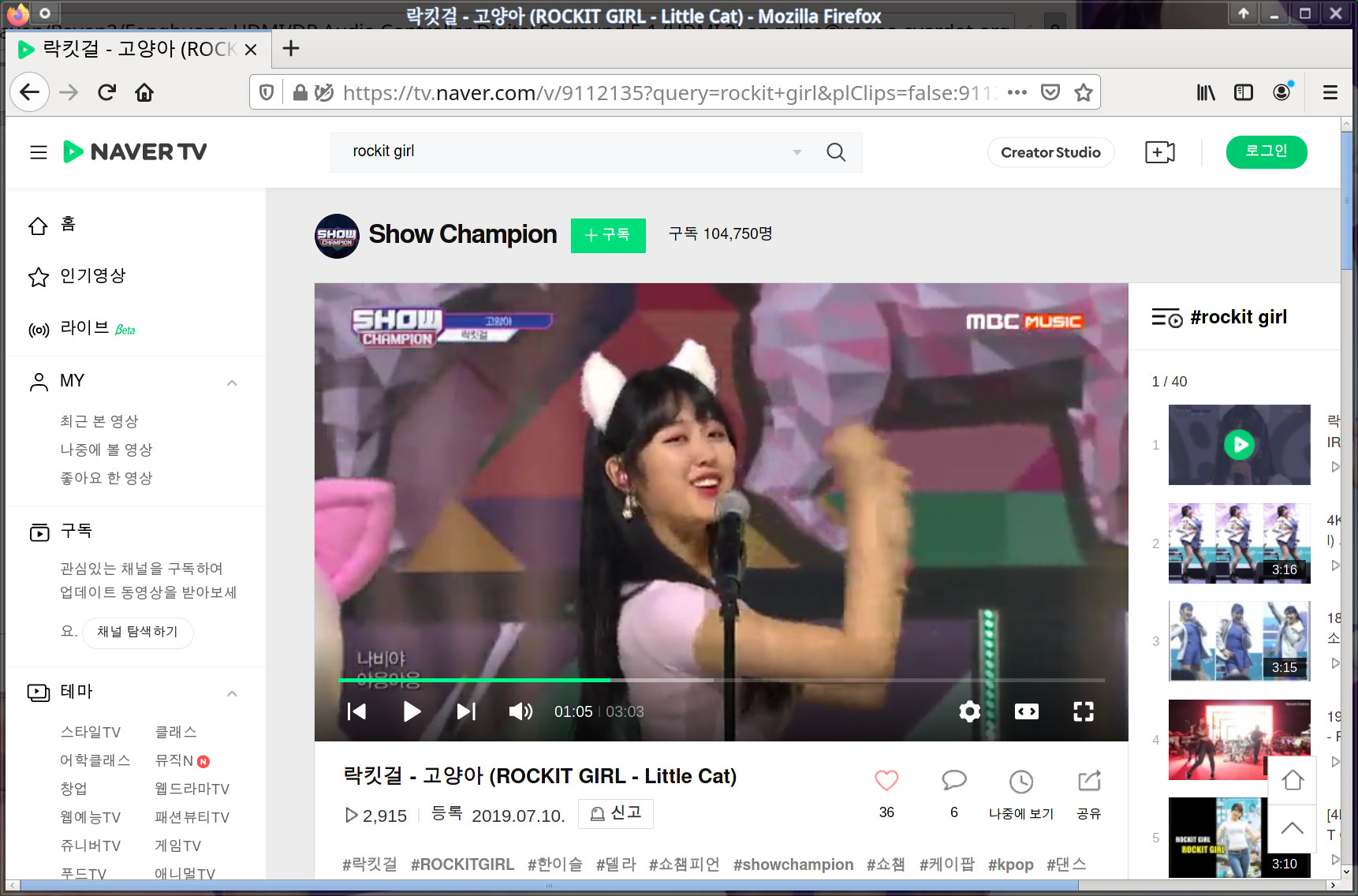
Mozilla Firefox is, out of the box, a pretty plain dull gray web browser with no menu beyond a silly hamburger menu more suitable for tablets and smartphones than desktop applications in the upper right corner. This can be fixed, Firefox is a highly configurable and customizable web browser if you know how to configure it. Many of the more important settings are hidden from the interface. The hidden settings can be changed by typing about:config into the address bar. You will want to change several settings in order to disable the built-in spyware and disable the backdoors. That is specially true if you are using Firefox on Windows or macOS; Linux distributions tend to distribute a version with most of the spyware disabled through bundled settings or compile-time flags.
A traditional menu can be enabled by right-clicking unused space in the toolbar and selecting . The gray dull look can be fixed by installing a theme from addons.mozilla.org /en-US/firefox/themes/. There are a lot of themes to choose from. There are also a broad range of extensions available from that site. You will need to install a few to make the Firefox experience bearable.
Firefox has a mature rendering engine. The vast majority of web pages are rendered correctly in Firefox. There are some corner-cases where Firefox renders CSS slightly differently and there are a few corner-cases where JavaScript behaves slightly differently in Firefox. This is more of a problem in 2020 than it was in 2010 when Firefox enjoyed a 31% marketshare, some web developers simply do not care how a website looks in a browser less than 5% of people will use to view the products they develop. Firefox will render most pages the same way Chromium does, the sites where using Firefox is an actual problem do exist but they are not common.
Firefox provides a slightly higher degree of user control than other web browsers. As an example, many websites will ask the web browser to disable the right-click pop-up menu on images and other objects. Firefox lets users over-ride right-click prevention by holding ⇧ Shift when you right-click.
Firefox supports themes and there are a lot of them available. Themes can be browsed and installed by visiting addons.mozilla.org.

Firefox 80 with a Oh My Girl theme. Yooa, in the upper right corner, is absolutely gorgeous and talented which is why she is in the most visible spot.
Firefox defaults to Google, Yandex or DuckDuckGo as the default search engine depending on what country you are in (The Mozilla Corporation has per-country deals). You can add other search engines by clicking on the three dots on the right side of the web address bar if the page you are on advertises itself as having a search feature. Concretely, any page with a <head>
</head> section containing:
<link rel="search" type="application/opensearchdescription+xml" href="$url" title="$title"/>
can be added as a Firefox search engine (you can add this site).
Firefox does not, by default, provide any easy way to choose search engine on a per-search basis. There is a setting called in ▸ where you can choose to get a search area with a drop-down menu to the right of the address bar.
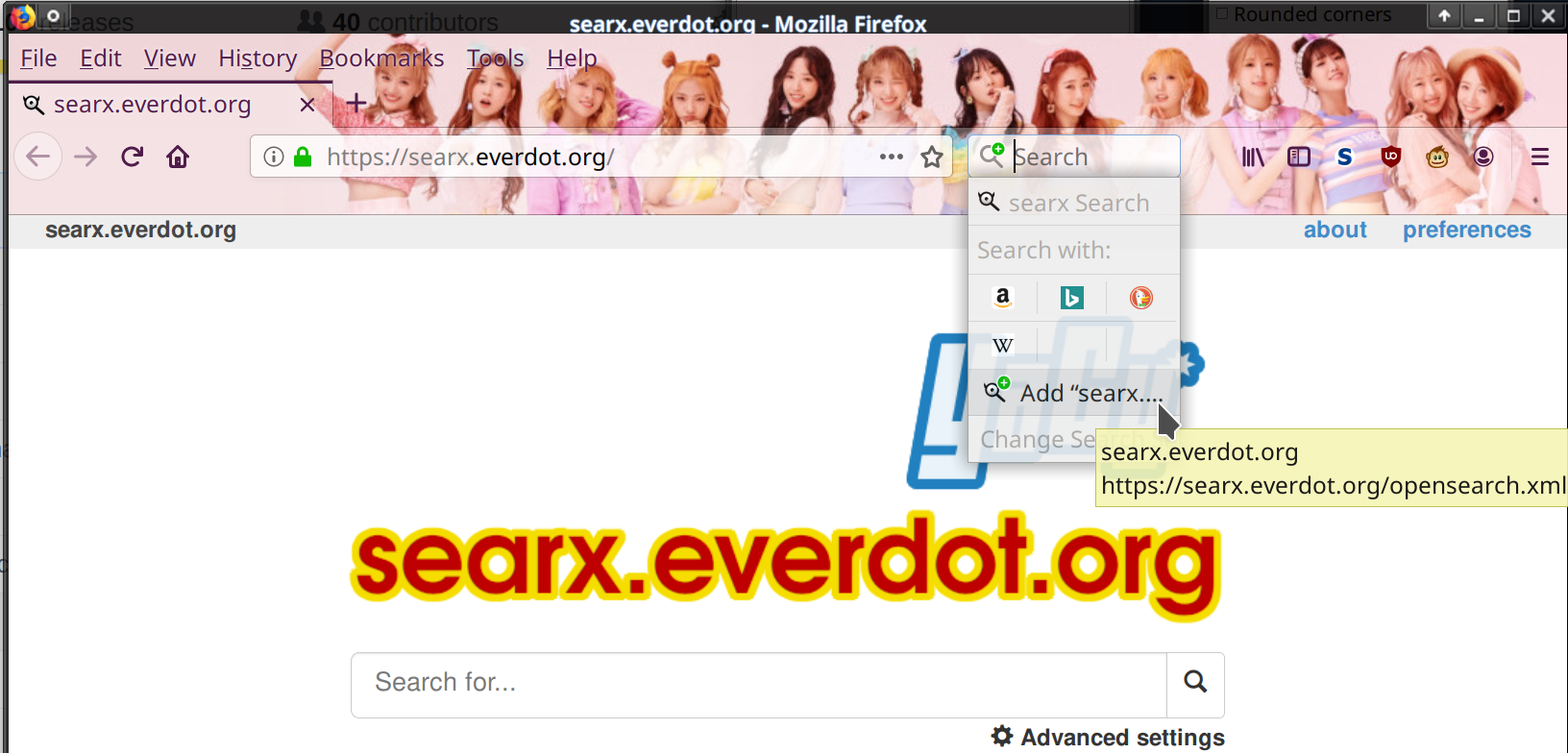
You can enable a handy search bar that can be used to choose or add search engines in ▸ .
Performance[edit]
Firefox performs alright when you browser and visit random websites. It is slower than the competition if a site is very JavaScript-intensive and it is specially slow if a website uses JavaScript to draw graphics using WebGL.
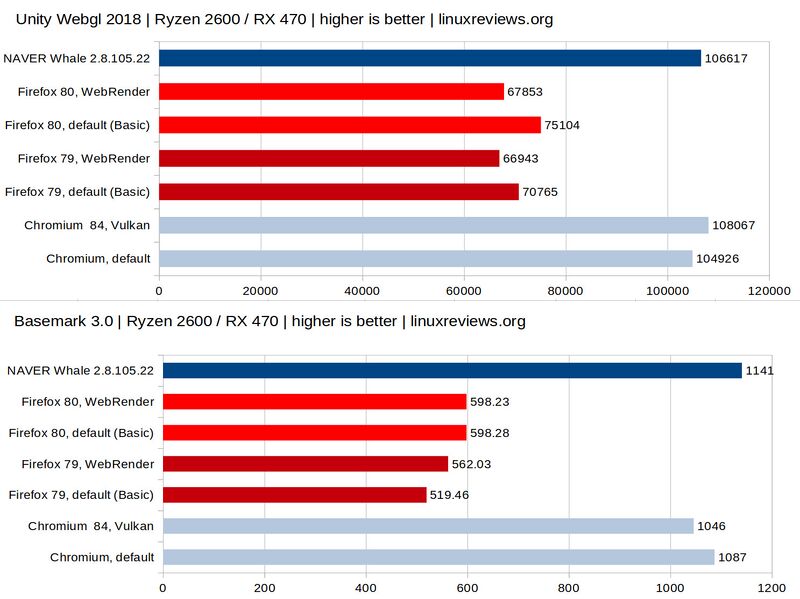
Firefox is notably slower than other web browsers in synthetic benchmarks.
Firefox has two rendering modes: Basic and Webrender. The Linux version defaults to "Basic" rendering as of Firefox version 80. Webrender can be enabled by changing the following options to true in about:config:
gfx.webrender.allgfx.webrender.compositor.force-enabled
The special about:support should show Compositing: WebRender when these settings are set. Using "Webrender" will not improve performance on GNU/Linux, it will actually perform worse than it does with "Basic" on pages drawing fancy graphics.
Firefox just slightly more than half as fast as NAVER whale and Chromium in synthetic benchmarks on GNU/Linux regardless of what rendering engine is used. It does not "feel" or seem slow when you render some random news website. It does feel and seem very slow and sluggish on sites with a lot of JavaScript and a lot of WebGL graphics, Firefox is simply a very bad choice for those kinds of websites.
Spyware And Backdoors[edit]
Firefox has a spyware suite called "telemetry" built into its core. It can be disabled and some GNU/Linux distributions ship Firefox versions with most of the telemetry disabled using custom configuration files or time-time options. Users of other operating systems like Windows and macOS and those using less privacy-focused GNU/Linux distributions have to manually disable the telemetry spyware. The Mozilla Corporation's conscious decision to build spyware into Firefox is specially worry-some because they market Firefox as a "privacy"-focused web browser. They are blatant liars with no face and no honor. Firefox has a special page called about:telemetry where it is possible to see some of the information it collects and reports back to Mozilla Corporation headquarters.
"Search suggestions" are enabled by default. This means that everything you type into the address bar is, by default, sent to either Google or DuckDuckGo or Yandex depending on what country you are in (the default search engine is country-dependent). This can be disabled (see "Essential Configuration" below) and it is something most users want so it is understandable that this convenient surveillance feature is enabled by default.
The backdoor the Mozilla Corporations has built into Firefox under the vastly misleading name "studies" is even more disturbing than the "telemetry" spyware. What Mozilla calls "Studies" are actually a form of extensions. Firefox will contact Mozilla-controlled servers at regular intervals and blindly download, install and/or update "studies with no user interaction, consent or information. Mozilla uses these extensions to change what TLS certificates are and are not accepted and several other things. Mozilla has even bragged about how they plan on using this feature to remotely disable Firefox on people's computers if they deem the version they are using to be "out of date". They could do a whole lot of other much worse things with this backdoor functionality. The "studies" backdoor can be disabled by settings app.shield.optoutstudies.enabled and app.normandy.enabled to false in about:config.
Most people lack the technical skills to understand the implications of the telemetry spyware and the "studies" backdoor built into Firefox and most causal computer users are unable to disable these "features" even if strait-forward instructions are provided to them. It is therefore outright cruel to recommend Firefox to anyone but the most tech-savvy computer users.
Extensions[edit]

Firefox supports plugins called "extensions" and there are tons of them available. The vast variety of extensions available is one of Firefox's greatest strength.
Firefox does not have any built in web garbage filtration system. It will show annoyances like "cookie warnings" and advertisements. This can be solved by installing an extension like Ublock Origin. Images from Instagram can easily be downloaded if you install an extension called "Image Downloader for Instagram". Per-site userscripts can be used if you install Violentmonkey or Greasemonkey.
Extensions made for Chromium-based browsers will not work in Firefox. That is not a big deal, all the more important extensions like Ublock Origin have their own Firefox versions available.
High Resolution Display Support[edit]
Firefox does not care about the X servers DPI setting, not even a little. There is an option to set in the . You will need to adjust this setting if you want to use Firefox on a high resolution display. There is also a setting called layout.css.dpi in about:config. That setting appears to be deprecated, it has zero effect on Firefox 80.
A pages zoom setting can be changed on-the-fly with ctrl++ and ctrl+-. ctrl+0 will re-set a pages size to the zoom-setting set in ▸ . It can also be changed by holding ctrl and moving the mouse wheel. Firefox will remember zoom settings on a per-site basis, opening a link on a web page to another page on that site will produce a new tab or window with the same zoom settings. This is something Firefox does right which several other browsers like Falkon and Midori don't. Chromium-based browsers like NAVER whale and the Brave Web Browser behave the same way Firefox does in this regard.
Web Development[edit]
Firefox has several debugging tools for developers. These tools can be opened by pressing F12. The developer tools offer a HTML inspector where HTML code and CSS are shown, a console, debugger, network monitor, style editor, performance monitor, memory monitor and a bit more. These tools are documented at developer.mozilla.org /en-US/docs/Tools.
Reloading a page in Firefox will always take you back to the top of the page, not the spot you were looking at. This means that if you make a change on a website (not the developer tools) and you refresh the page with ctrl+⇧ Shift+r you are always taken to the top of the page (regardless of the developer tools being open or not) - not a new version of what you are looking at. Chromium-based browsers take you to the same part of a page when you reload a page with ctrl+⇧ Shift+r and that alone makes Firefox a vastly inferior tool for web developers.
Firefox has a mobile phone mode which can be enabled by pressing ctrl+⇧ Shift+m. This feature basically limits the space a web page can be rendered on to a small square in the middle of the web browser window. It does not change the user-agent so this feature is absolutely useless since you get the desktop, not the mobile, versions of websites in that tiny "mobile view" window. You can make it use a "custom" user-agent but you will have to type it into a input-field every time, you can not simply choose one from a pre-defined list.
Verdict And Conclusion[edit]

Firefox is, out of the box, not a very feature-rich or useful web browser. There is no menu, there is no easy way to add search engines, it looks dull and gray, there is no web garbage filtration and spyware features and backdoor functionality is enabled. All of these issues can be fixed if you are willing to waste a lot of time customizing and configuring Firefox.
And you absolutely can customize and configure and tune and tweak Firefox. That is a great strength but it is also a weakness. Firefox can be a very nice web browser if you spend a lot of time configuring it to your needs and liking. And you will have to do that or it will be a sour experience.
Performance is alright in most cases but it is absolutely dismal when it comes sites using WebGL and very JavaScript-intensive websites. Firefox is not what you are looking for if you want maximum performance. That does not matter if you are browsing random news sites and things like that but it may be a problem if you use some specialized websites regularly.
The telemetry spyware and the "studies" backdoor are a grave concern. We can safely recommend Firefox if you are willing to turn that off and you are willing to spend time customizing it to your liking. Do do not recommend Firefox if you are not a power-user and you do not want to waste time configuring your web browser.
Essential Extensions[edit]
Some extensions are more useful than others. These are, in our opinion, essential to getting a good Firefox experience:
- Ublock Origin is the best adblocking plugin for Firefox. You can download and install it from addons.mozilla.org /en-US/firefox/addon/ublock-origin/. It has a somewhat limited set of web filters enabled by default so you will have to configure it once it is installed.
- Ublock Origin lets you turn JavaScript on/off on a per-site basis by clicking the red UB icon; this eliminates the need for additional JavaScript-control extensions like NoScript.
- Stylus. Stylus lets you override the CSS on any web page. Stylish was the best option for overriding a pages CSS for years and years and many still use it by habbit. Stylish has been spyware since early 2017[1]. The Stylus extension is a non-spying alternative.
- Greasemonkey or Violentmonkey will let you run user-scripts that give specific websites additional functionality. Tampermonkey by Jan Biniok, which does the same thing, is closed source. The Violentmonkey Firefox extension has slightly more functionality than Greasemonkey. It is open source with the source-code available on github.
Essential Configuration[edit]
A lot of the more important Firefox settings are hidden from the interface. The only ways to change them are a) type about:config into the web address bar or b) create a file called prefs.js in the Firefox profile directory.
OpenGL hardware acceleration can be enabled by setting layers.acceleration.force-enabled to true. The about:support will show Compositing: OpenGL instead of Compositing: Basic with this setting enabled unless you also enable Webrender (gfx.webrender.all) - in which case Webrender will be used instead.
Firefox has backdoors called "studies" and "normandy". These are actually a features that allows Mozilla to remotely change user settings and install extensions on their users browsers without their knowledge or consent. They use this to change "security" settings like what TLS protocols are allowed in the past. They have used this to enable less secure features when they thought they had shipped "too secure" defaults in the past. These backdoors can be disabled by setting app.shield.optoutstudies.enabled and app.normandy.enabled to false in about:config. The default true setting enables these "features" even though it may sound like app.shield.optoutstudies.enabled being true would disable it.
The telemetry spyware can be disabled in the preferences area under ▸ ▸ ▸ . These settings can also be disabled in about:config but the settings you need to change are not what they may seem. toolkit.telemetry.enabled is not available in recent versions like Firefox 80 and it never did what it sounds like it would do. That setting would generate less telemetry but it was never a way to disable it. These settings affect the spyware feature:
| Setting | Setting to disable spyware | Default |
| datareporting.healthreport.uploadEnabled | false | true |
| browser.crashReports.unsubmittedCheck.autoSubmit2 | false | false |
| datareporting.policy.dataSubmissionEnabled | false | true |
| toolkit.telemetry.server | https://incoming.telemetry.mozilla.org | (blank) |
Note: datareporting.policy.dataSubmissionEnabled does not appear to do anything in recent Firefox versions. It used to be required, that may or may not be the case in Firefox 80+. Zeroing out toolkit.telemetry.server is not really required but it is a good idea in case Mozilla re-enables the spyware by changing the other keys in a future release.
Firefox will by default send everything you type into the address bar so you can get "search suggestions". This has huge potential privacy-implications. It can be turned off in about:config:
| Setting | Setting to disable spyware | Default |
| browser.search.suggest.enabled | false | true |
This setting is also available under ▸ ▸ ▸ where there is a check-box called .
Getting auto-completed search-suggestions as you type is convenient so you might want to leave this setting alone if you value convenience over privacy.
Firefox has a feature called "Pocket". This feature lets you save bookmarks and other content on Mozilla's server so they get to see and analyze your interests. This feature is restricted to users in certain countries[2]. You can turn that feature off by setting extensions.pocket.enabled to false.
Firefox will, by default since version 65, send all your DNS queries to Cloudflare for inspection. DNS queries to their servers are done using DNS over HTTPS. The idea is to by-pass local DNS servers so local attackers and your local ISP do not get to see your DNS queries. The trade-off is that Cloudflare gets to spy on your DNS queries regardless of where you are. This "feature" is controlled by a setting called network.trr.uri which can be set to a number with different meanings:
| Setting | Function | Lets Cloudflare spy on you |
| 1 | DNS over HTTPS is enabled Firefox may or may not use it depending on per-site rules |

|
| 2 | DNS over HTTPS is enabled with regular DNS queries as a fall-back if DoH does not work |
|
| 3 | DNS over HTTPS is enabled and always used Regular DNS fall-back is disabled. |
|
| 4 | Does not appear to be documented anywhere. | 
|
| 5 | DNS over HTTPS is disabled | 
|
Some GNU/Linux distributions, like Fedora, ship with a custom configuration file (/usr/lib64/firefox/browser/defaults/preferences/firefox-redhat-default-prefs.js) with
/* Disable DoH by default */
pref("network.trr.mode",                    5);
Set network.trr.uri to 5 if you have setup your own DNS server and you prefer to use your systems DNS settings (set in /etc/resolv.conf). There are both privacy-related and moral issues with settings 1-3: All your DNS queries are sent to Cloudflare who could store your data and could decide to randomly censor websites they do not want you to read. That does not mean 5 is a better setting in all cases. Your ISP or the Internet cafe you are at may provide hostile DNS servers when your machine asks for DNS servers using DHCP when it connects to the network.
Tips And Tricks[edit]
Useful Special Pages[edit]
| Special address | Feature |
|---|---|
about:support
|
"Troubleshooting Information" This page will show you all kinds of incriminating information about Firefox, Add-ons and extensions (including those you never installed yourself), the graphics renderer, the WebGL driver in use, changed settings and much more. |
| about:telemetry | This special page will show you how much incriminating evidence the Telemetry spyware built into Firefox has collected. |
| about:restartrequired | Brings up a page with a button. This button lets you restart Firefox and keep your currently opened windows and tabs. This will work except in the rare cases where your distributions package manager has updated Firefox since you started it; pressing will simply make it quit and not restart if that's the case. That's a bit ironic since that special page contains the text Firefox has just been updated in the background. Click Restart Firefox to complete the update.. |
| about:networking | Lets you see open HTTP connections, sockets, DNS queries and WebSockets. Starting Firefox with a blank profile and immediately going there without opening a single web page is quite telling. |
Increasing Mouse Wheel Scroll Length[edit]
You can make the mouse wheel scroll faster by changing mousewheel.min_line_scroll_amount in about:config. This value defaults to 5. The key name is, like so many of them, misleading. Setting it to 50 or 100 will make Firefox scroll faster when you turn the mouse wheel but it won't make it scroll 50 or 100 lines. This value could refer to pixels on the screen (that seems to be how it behaves, anyway). The higher the value, the faster it scrolls. Try increasing in intervals of 10 or 20 until you find a comfortable setting.
Enabling Hardware Accelerated Video Decoding[edit]
Firefox 80+ can do hardware accelerated video decoding using VAAPI.
Run vainfo (available in libva-utils) to see if VAAPI is available on your machine. It should be if you have a machine with a Intel iGPU or a AMD GPU.
VAAPI can only be enabled by enabling a few settings about:config and setting the environment variable MOZ_X11_EGL to 1 if you use the "Webrender" engine. There is no VAAPI setting in the settings.
You must use either Webrender rendering OR OpenGL accelerated rendering (set layers.acceleration.force-enabled to true) to get VAAPI hardware video decoding to work. That is why gfx.webrender.all and gfx.webrender.compositor.force-enabled are included in the tables below.
The settings you want to change to enable VAAPI if you choose to use Webrender:
| Setting | Default | Required to enable hardware accelerated video decoding using VAAPI with Webrender |
| media.ffmpeg.vaapi-drm-display.enabled | false | true |
| media.ffmpeg.vaapi.enabled | false | true |
| media.ffvpx.enabled | true | false |
| gfx.webrender.all | false | true |
| gfx.webrender.compositor.force-enabled | false | true |
You MUST also start Firefox with the MOZ_X11_EGL=1 environment variable set or VAAPI will not work with Webrender. The about:support page will list EGL under when this is enabled. Firefox is slower with EGL than it is when GLX (the default) is used so there is a trade-off.
You can, alternatively, use VAAPI with OpenGL compositing:
| Setting | Default | Required to enable hardware accelerated video decoding using VAAPI with OpenGL |
| media.ffmpeg.vaapi-drm-display.enabled | false | true |
| media.ffmpeg.vaapi.enabled | false | true |
| media.ffvpx.enabled | true | false |
| layers.acceleration.force-enabled | false | true |
| gfx.webrender.all | false | false |
| gfx.webrender.compositor.force-enabled | false | false |
media.ffvpx.enabled is a rather odd setting needed for either rendering mode. It decides if the system ffmpeg library or the Firefox-bundled ffmpeg library should be used. This setting has to be false to enable VP8 and VP9 hardware decoding (only available on Intel iGPUs and the very latest AMD graphics cards).
Firefox does not have any status page that will show you if VAAPI is enabled or not (about:support will only indicate that the settings values are changed under "Important Modified Preferences", it will not show if it is actually used or what codecs are supported). The only way to find out if it is working or not is to play a video after start Firefox in a terminal with the MOZ_LOG="PlatformDecoderModule:5" environment variable set (don't forget that you also need MOZ_X11_EGL=1 if you use Webrender).
One of the first few lines among a lot of useless information will either be:
PlatformDecoderModule DMA-Buf/VA-API can't be used, WebRender/DMA-Buf is disabled
if it VAAPI not working at all, or
PlatformDecoderModule VA-API FFmpeg init successful
PlatformDecoderModule Choosing FFmpeg pixel format for VA-API video decoding.
PlatformDecoderModule Requesting pixel format VAAPI_VLD
(..)
Decode context initialised: 0x19/0x1a
if VAAPI is working and it is actually used. You could also end up with:
PlatformDecoderModule VA-API FFmpeg init successful
(..)
Failed setup for format vaapi_vld: hwaccel initialisation returned error.
This will be the case if the VA API itself is available but the video codec format is not. This will be the case if you try to play VP9 video on an older AMD GPU without support for VP9 hardware decoding.
Per-Purpose Profiles[edit]
Firefox supports different profiles with completely independent settings, bookmarks and so on. Profiles can be created or managed by starting firefox with firefox -ProfileManager. A profile can be chosen by starting firefox with Exec=firefox --no-remote -P profilename
You can make multiple profiles available in your desktop environments menu by creating a FreeDesktop standard .desktop file in $HOME/.local/share/applications/:
[Desktop Entry]
Version=1.0
Name=FF personal
GenericName=personal Web Browser
Comment=Firefox for personal
Exec=firefox --no-remote -P personal %u
Icon=firefox
Terminal=false
Type=Application
MimeType=text/html;text/xml;application/xhtml+xml;application/vnd.mozilla.xul+xml;text/mml;x-scheme-handler/http;x-scheme-handler/https;
StartupNotify=true
Categories=Network;WebBrowser;
Keywords=web;browser;internet;
Actions=new-window;new-private-window;
X-Desktop-File-Install-Version=99.999

[Desktop Action new-window]
Name=Open a New Window
Exec=firefox --no-remote -P personal --new-window %u

[Desktop Action new-private-window]
Name=Open a New Private Window
Exec=firefox --no-remote -P personal --private-window %u
Faking Your User-Agent[edit]
There are several extensions that will let you switch between different user-agents available. You can also switch user-agent adding a value called general.useragent.override in about:config. Go to about:config and right-click and select ▸ and make a new key called general.useragent.override. Next, put something inthat string such as
Mozilla/5.0 (iPhone; CPU iPhone OS 13_6_1 like Mac OS X) AppleWebKit/605.1.15 (KHTML, like Gecko) Version/13.1.2 Mobile/15E148 Safari/604.1
if you want to pretend you are a Apple iPhone user or
Mozilla/5.0 (Windows NT 10.0; Win64; x64; rv:80.0) Gecko/20100101 Firefox/80.0
If you want to look like you are using Firefox on Windows.
 |
Warning: general.useragent.override will NOT be respected if privacy.resistFingerprinting is set to true. The user-agent will, in that case, always be forced to either Mozilla/5.0 (Windows NT 6.1; rv:60.0) or Mozilla/5.0 (Windows NT 10.0; rv:78.0) Gecko/20100101 Firefox/78.0 (in 78+) regardless of what OS or Firefox version you are using. The general.useragent.override setting is simply ignored.
|
Forcing A Minimum Tab Width[edit]
Press ctrl+t time and time and time again and the individual tabs will be so small you will not be able to see much more than a favorite icon of the site open in a given tab. It is possible to set a minimum tab width by changing browser.tabs.tabMinWidth in about:config.
Forcing Firefox To Show http:// In The URL Address Bar[edit]
Firefox will, by default, strip the http:// part of a websites address in the location bar but show https:// in front of a websites address if it is using the HTTPS protocol. It is possible to make it include the protocol part of all addresses shown in the location bar by setting browser.urlbar.trimURLs to false in about:config.
Configuring Default Applications[edit]
Mozilla Firefox can be configured to either open files on websites or save them in ▸ . The default applications it proposes to use are the ones set in $HOME/.config/mimeapps.list.
Firefox needs websites to provide the correct mime type for files in the Content-Type: field to automatically open them in pre-defined applications. Firefox will always ask you if a files mime-type does not match the file extensions. As an example, if you set .csv files to always be opened in LibreOffice Calc then will open .csv files in LibreOffice Calc if the Content-Type: is set to text/csv but it will ask if you want to open it or save it if the website serving it serves it with the mime-type text/plain.
The dialog box asking you what to do in those cases where the mime-type does not match the extension will of course have an option to Do this automatically for files like this from now on.. Having that box checked makes no difference if you choose to open it in an application, it will ask every time the mime-type is mismatched anyway. It will happily save Save file as a default if Do this automatically for files like this from now on.
There is of course no way to see what file type a website uses to serve files in Firefox since that would be a too useful feature. The lynx can be used to check what mime-types are used to serve a file. Open a terminal and use its -head option (lynx -head https://example.tld/file.jpg) to see all HTTP headers including Content-Type.
See Also[edit]
- Mozilla Firefox 2 (Bon Echo) (released in 2006)
- Falkon
- Midori
- GNOME Web
Footnotes[edit]
Links[edit]
- The Firefox website is at mozilla.org/en-US/firefox/.
- ffprofile.com offers a online tool for creating Firefox settings profiles that are downloadable in a variety of formats (
prefs.js, enterprise policy files, etc). It is a good alternative to hand-editing dozens of settings inabout:config.


Enable comment auto-refresher
Anonymous (2daf99c3a0)
Permalink |